📌 Quick Summary:
Getting Korean keyboard setup for expats done takes about five minutes on both Windows 10 and Mac. Once it’s active, the Hangeul (han-geul) keyboard uses your existing 26 keys — consonants mapped to the left side, vowels to the right. The biggest hurdle isn’t the setup; it’s building the muscle memory to type syllables smoothly. The most effective approach: start slow, part by part, and let repetition do the work.
If you’ve tried to type Korean and ended up watching random characters mash together on screen, you’re not doing it wrong — you just haven’t learned the logic yet. The good news is that Korean keyboard setup for expats is genuinely straightforward, and the layout itself has a clean internal logic that makes sense once you see it. I learned to type Hangeul as an elementary school student — no theory, no formal method, just looking at the keyboard and repeating until my hands knew where to go. That’s still my recommendation today, and it works just as well for adult learners starting from zero.
Think of it the same way you’d approach setting up a Hi-Pass card — a bit unfamiliar the first time, completely manageable once you know the steps.
Adding a Korean Keyboard on Windows 10 and Mac
The setup itself takes under five minutes on either operating system. Here’s exactly how to do it.
Struggling to Navigate Korean Online Systems?
From government portals to apartment registration forms — typing in Hangeul is the first step. If you’re stuck on something more specific, Jin can help you work through it directly.
Ask JinWindows 10
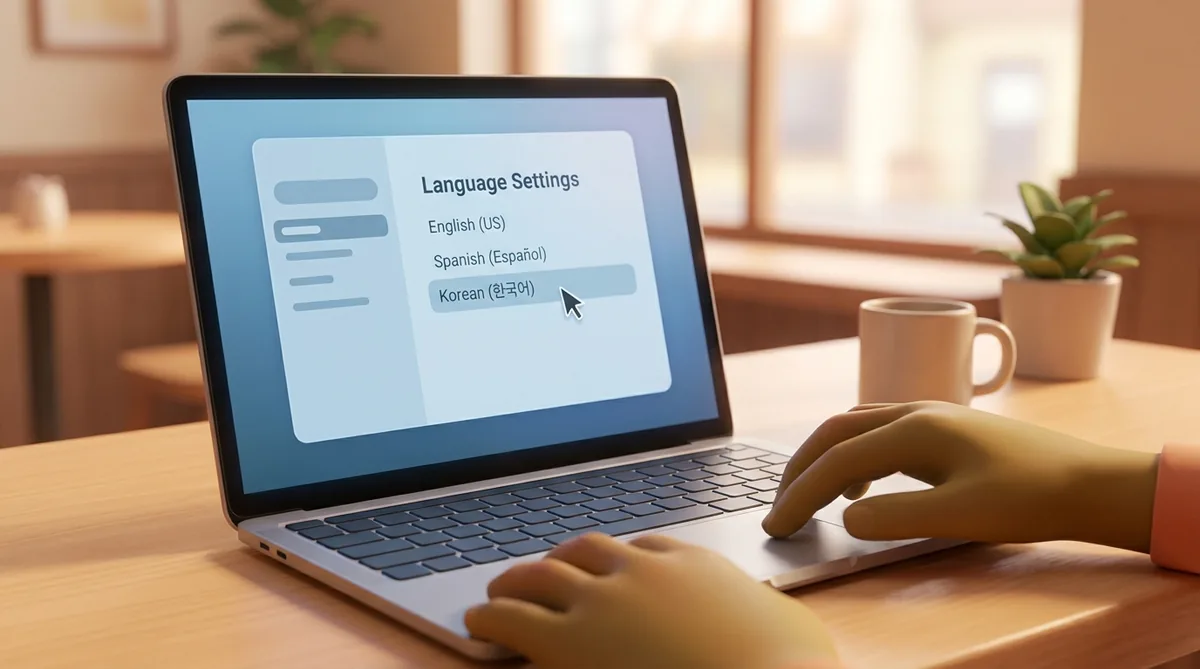
- Open Settings and go to Time & Language.
- Select Language from the left panel, then click Add a language.
- Search for Korean, select it, and follow the prompts to install.
- Once installed, go to Edit language and keyboard options — Korean (Microsoft IME) should already be listed.
- Switch between English and Korean at any time using Win + Space (cycles through all installed input methods), or click the language icon in your taskbar — it toggles between “A” for English and “가” for Korean. On some Korean-configured keyboards, the right Alt key may also switch inputs.
Mac
- Open System Preferences and click Keyboard.
- Go to the Input Sources tab.
- Click the + button, search for Korean, and add 2-Set Korean (두벌식 — the standard layout used everywhere in Korea).
- Check Show Input menu in menu bar so you can see and switch your active language easily.
- Toggle between English and Korean using the Caps Lock key (default on most recent Macs) or ⌃Space (Control+Space) on older macOS versions. You can check or change your shortcut under System Preferences → Keyboard → Shortcuts → Input Sources.
That’s it. Your keyboard is now ready to type Hangeul using the same physical keys you’ve always used.
Hangeul Keyboard Layout Explained
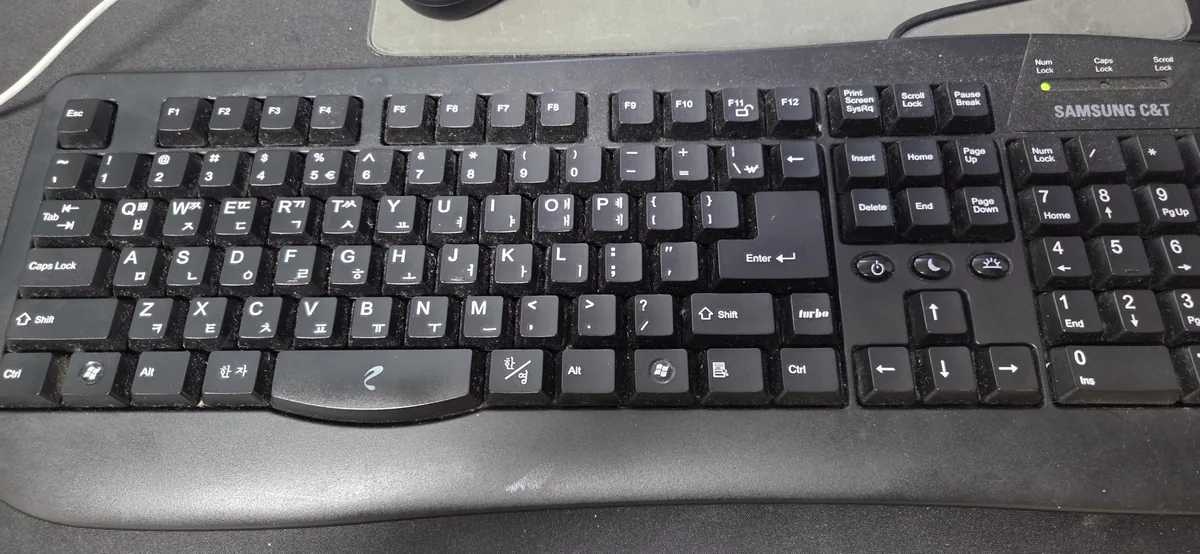
Here’s the one piece of structure worth knowing upfront: the standard Korean keyboard — officially called 두벌식 (du-beol-sik), or “2-Set” — divides neatly in two. Consonants live on the left side of the keyboard. Vowels live on the right. That’s the whole architecture.
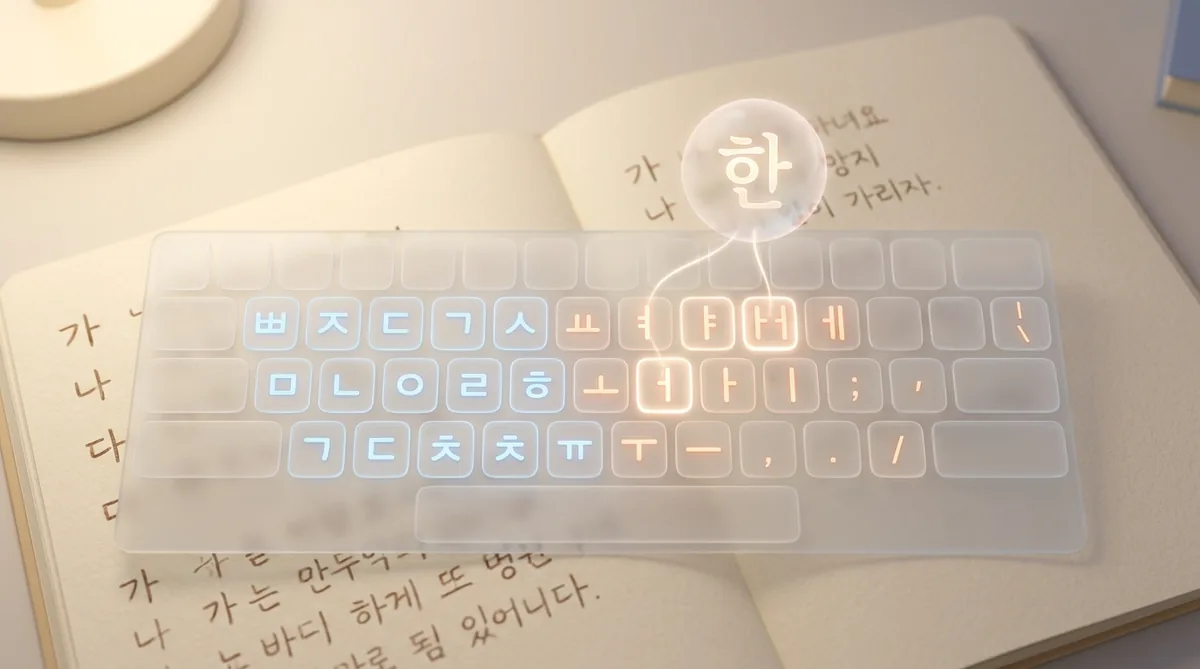
When you type a Korean syllable, the system assembles it automatically in a fixed order: top-left first (initial consonant), then top-right (vowel), then bottom (final consonant, if there is one). You don’t manually arrange the syllable block — the software handles it. Type the components in the right sequence and the character forms itself on screen.
For example, to type 가 (ga): press the consonant ㄱ, then the vowel ㅏ. The system combines them instantly. To type 강 (gang): consonant ㄱ, vowel ㅏ, final consonant ㅇ. Three keystrokes, one syllable block.
⚠️ The Shape-Shifting Character Trap
When you’re typing and a character suddenly changes shape or jumps to a different position, the system isn’t glitching — it’s assembling the syllable block in real time. This is the single most common moment of panic for new typists. Keep going. Finish the syllable and the block will resolve correctly.
The most useful right-hand vowel keys to recognise early: ㅏ (a), ㅓ (eo), ㅣ (i), ㅗ (o), and ㅜ (u). These five cover a huge proportion of everyday Korean words. Get comfortable with them first and the rest of the layout will feel far less overwhelming.
The Only Practice Tip You Need to Start
Most guides tell you to memorise the layout as a whole before you start typing. I’d push back on that. The more effective approach — and the one I actually used — is to work through it in sections. Learn a small cluster of keys, type with them until they feel automatic, then expand to the next group.
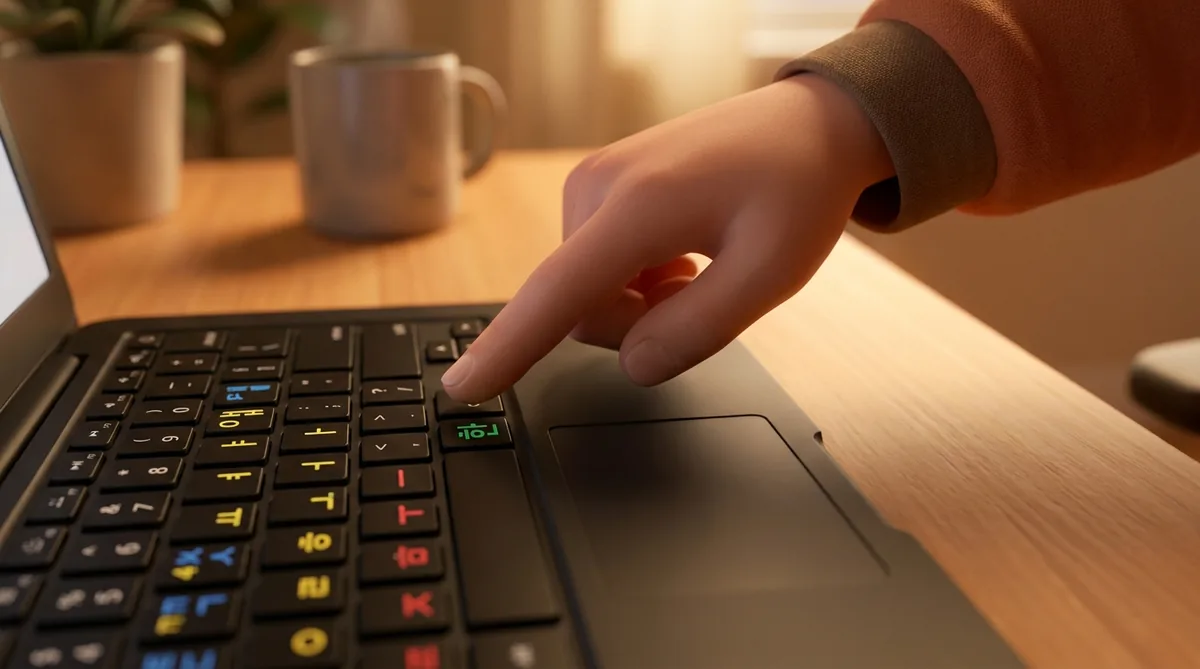
Start with the five core vowels on the right and a handful of high-frequency consonants: ㄱ, ㄴ, ㄷ, ㄹ, ㅁ. Use those to type simple two-character syllables — 가, 나, 다, 라, 마 — slowly, while looking at the keyboard. Don’t rush. The goal at this stage isn’t speed; it’s building the connection between the key and the character in your memory. Once those feel natural, add the next cluster. Words follow, then sentences, then everything.
There’s also a rhythm element worth knowing. Proficient Korean typists don’t press each key in isolation — they press the components of a syllable together quickly, almost as a unit, rather than sequentially. Think of it less like typing individual letters and more like playing a chord: the components arrive close together, and the syllable lands cleanly. Practising this “tick-tock” tempo — press, land, press, land — produces smoother output than plodding through one key at a time.
Here’s the honest reality check: it will feel slow and clumsy for the first session or two. That’s the one-time cost. Once your hands know where the keys are, they never forget — same as finding the toilet in a new building. You look for it once. After that, it’s automatic. The only way to get there faster is to start sooner.


For expats navigating Korean systems daily — government sites, apartment portals, school enrollment forms — Korean typing is a practical skill, not just a nice-to-have. If you’ve already been through the process of navigating Korean systems as an expat, you already know how much smoother things get when you can enter your own information in Hangeul rather than waiting for someone to do it for you.
The layout will feel alien for the first hour or two. That’s normal. Stick with the part-by-part approach, trust the repetition, and don’t expect your hands to know where everything is until they’ve had enough practice to just know. They will get there.
💡 Pro Tip:
If you want a physical reference while you build muscle memory, Korean keyboard stickers — small Hangeul labels that stick over your existing keys — cost as little as $1 online and are a perfectly reasonable crutch for the first few weeks. No need to buy a new keyboard. Once you know where the keys are, pull the stickers off.
Have questions about the setup process, or running into a specific error when switching languages? Ask JustAskJin — it’s the quickest way to get a direct answer without digging through forums.
Frequently Asked Questions
How do I add a Korean keyboard on Windows 10?
Go to Settings → Time & Language → Language, click Add a language, and search for Korean. Once installed, Korean (Microsoft IME) will be available in your language options. Use Win + Space or the taskbar language icon to switch between English and Korean at any time.
How do I add a Korean keyboard on a Mac?
Open System Preferences → Keyboard → Input Sources, click the + button, and search for Korean. Add 2-Set Korean (두벌식), which is the standard layout used throughout Korea. Enable Show Input menu in menu bar. Use Caps Lock (recent Macs) or ⌃Space (older macOS) to toggle between English and Korean.
What is the basic Hangeul keyboard layout and how do syllables form?
The standard Korean keyboard setup for expats uses the 두벌식 (2-Set) layout: consonants on the left side of the keyboard, vowels on the right. When you type, the system automatically assembles syllable blocks in order — initial consonant first, then vowel, then final consonant if needed. You don’t arrange the block manually; the software handles it as you type each component.
Why do Korean characters suddenly change shape while I’m typing?
This is normal and one of the most common points of confusion for new typists. The system is assembling your syllable block in real time as you add each component. Keep typing — once you complete the syllable, the block resolves into its final form. It is not a glitch.
Are Korean keyboard stickers worth using for beginners?
Yes — they are a cheap and practical visual aid, typically available online for as little as $1. Stickers help you locate keys while you are still building muscle memory, and you can remove them once you no longer need to look. There is no need to buy a separate Korean keyboard.